Starting with version 1.1.9*, the Bookshop.org ebook app has been able to use volume buttons to turn or scroll through pages while reading an ebook by turning on this feature in the reader settings.
BOOX devices have dedicated buttons intended for page turning and scrolling that should work with this setting, but requires that you set those buttons to behave as Volume Buttons for the Bookshop.org app’s page turning / scrolling feature to work correctly. To set this up you need to do the following:
1. Set the Bookshop.org app to treat BOOX buttons as volume buttons
With the latest version of the Bookshop.org app installed, go to your App’s tab on the BOOX device
Long press on the Bookshop.org app to bring up the menu.
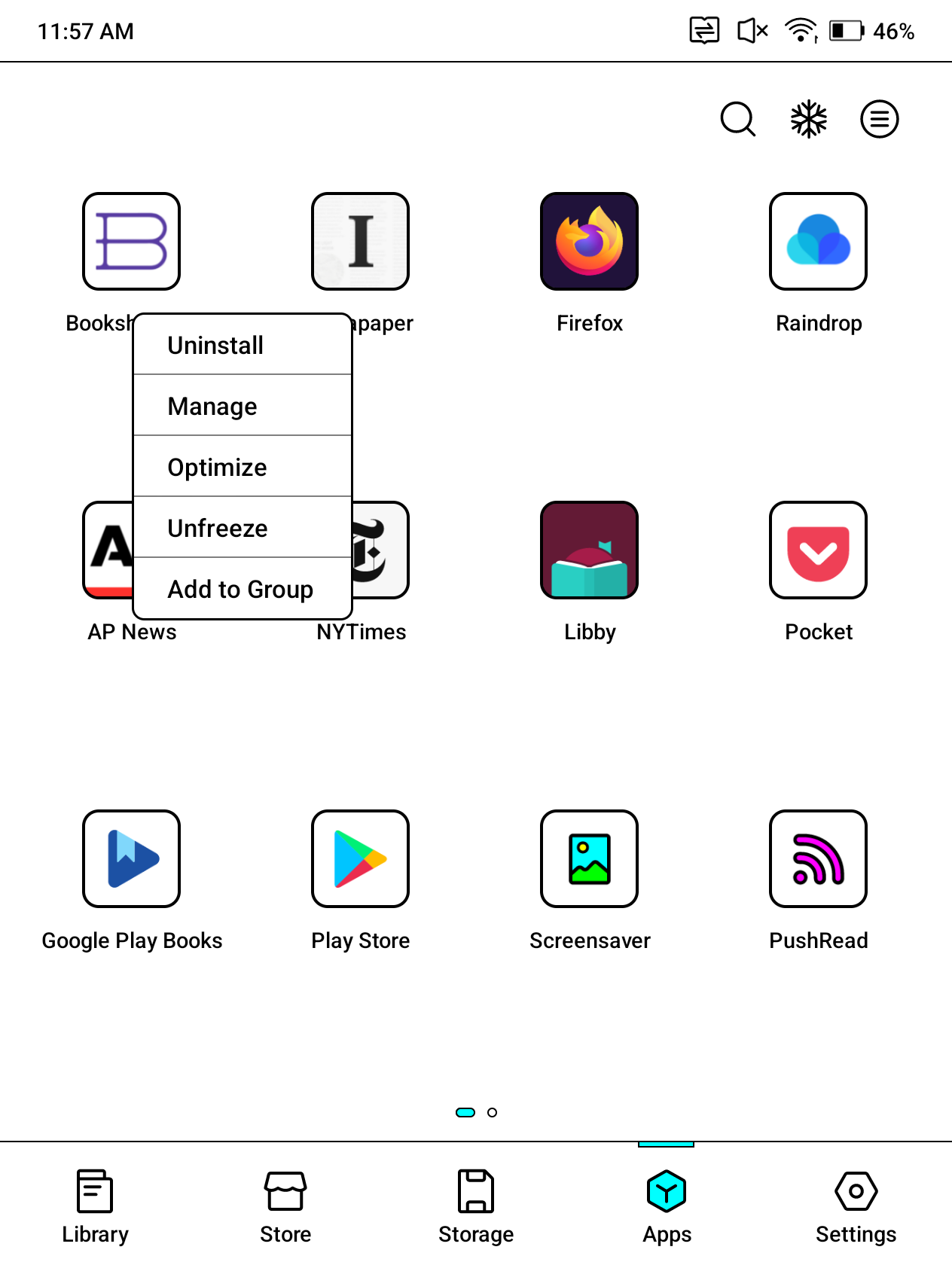
Select Optimize
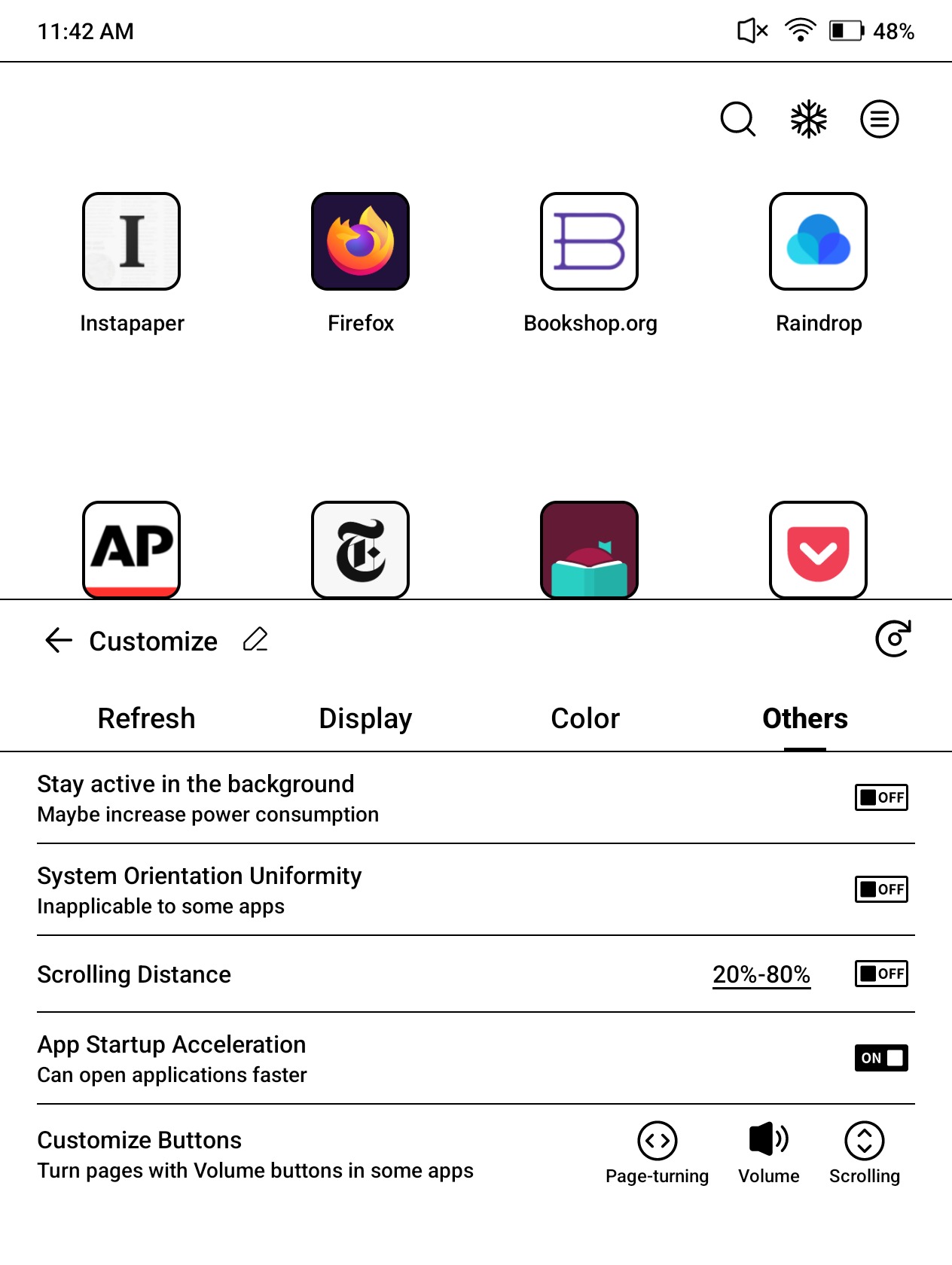
Navigate to the “Others” tab
In the “Customize Buttons” section make sure the option selected is “Volume”
2. Turn on “Turn Pages With Volume Buttons” setting in Bookshop.org app reader
Open the Bookshop.org app.
Open any book in your library.
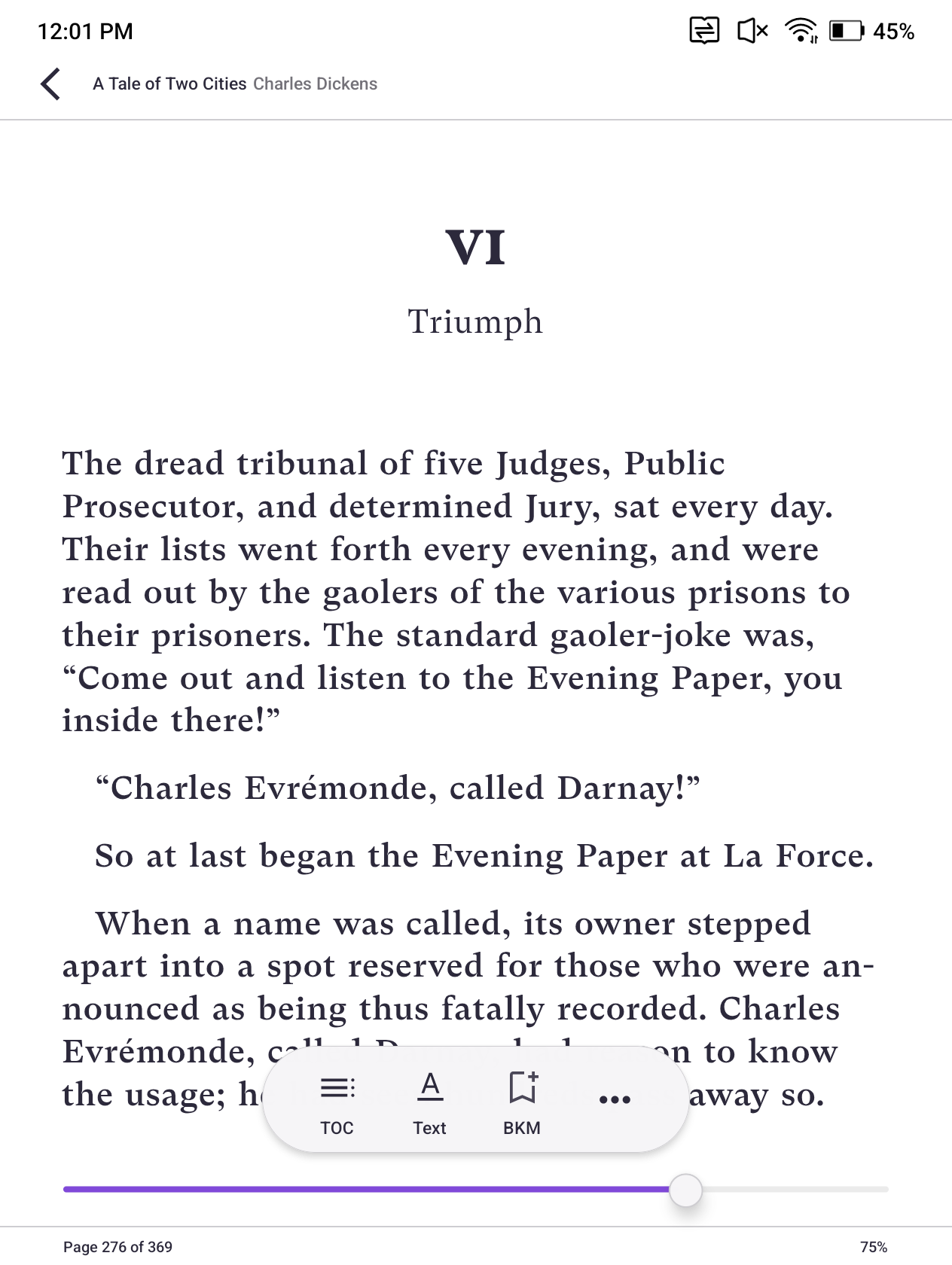
Tap the screen to bring up the main menu. Select the “Text” settings option.
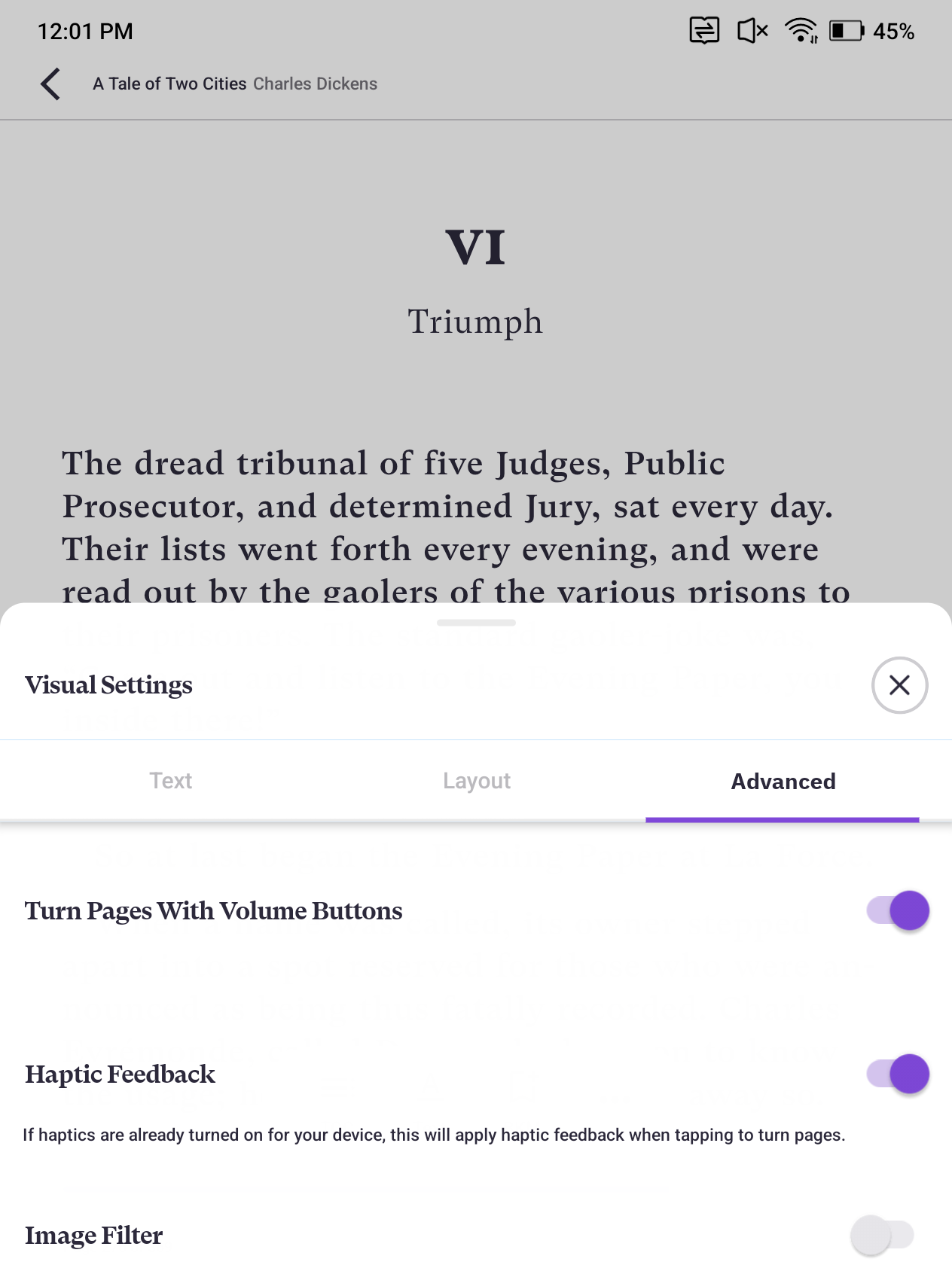
Switch to the “Advanced” tab.
Toggle “Turn Pages With Volume Buttons” to the on position.
*Tutorial written using the BOOX Color Go 7 (BOOX Firmware version 4.1). Experience may vary slightly on other BOOX devices. Please refer to the official BOOX help center for device specific questions.
Was this article helpful?
That’s Great!
Thank you for your feedback
Sorry! We couldn't be helpful
Thank you for your feedback
Feedback sent
We appreciate your effort and will try to fix the article